Setting Up Your Team
Create a team to manage raffles with your project or community. You can have as many teams as you like.
1. Create your team
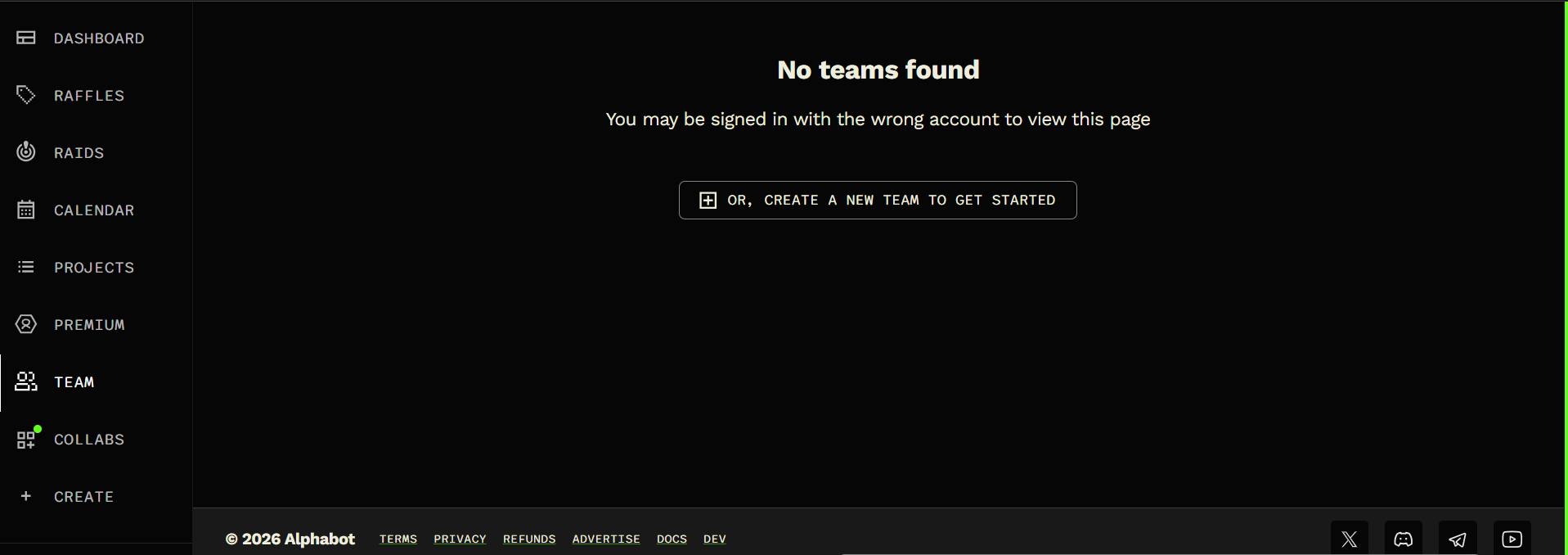
Section titled “1. Create your team”Select TEAM in the website’s left navigation, or at the bottom on mobile. You’ll see your existing teams here. If you have none, create one to get started. You can also create a new team directly.
View the team navigation
2. Add your community details
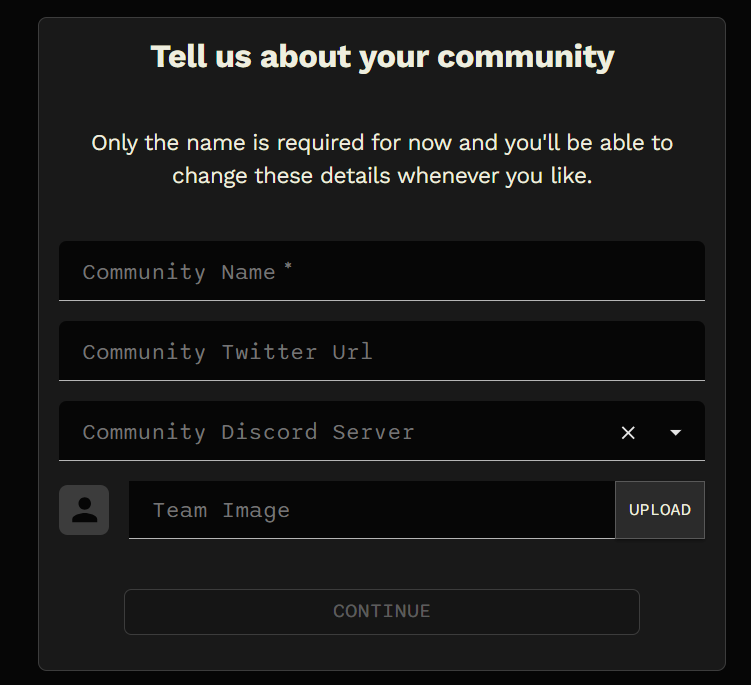
Section titled “2. Add your community details”Enter your team name, then add an image and community links if you have them. Only the name is required at this stage, and you can change these details later. Follow the setup prompts to continue.
View the community details form
3. Choose your plan
Section titled “3. Choose your plan”Choose Restricted for the free plan or Unlimited for a subscription.
| Restricted (free) | Unlimited (subscription) |
|---|---|
| One active raffle at a time | Unlimited raffles |
| Up to 100 entries | Unlimited entries |
| Limited requirements | Unlimited requirements |
| No Discord integration | Full Discord integration |
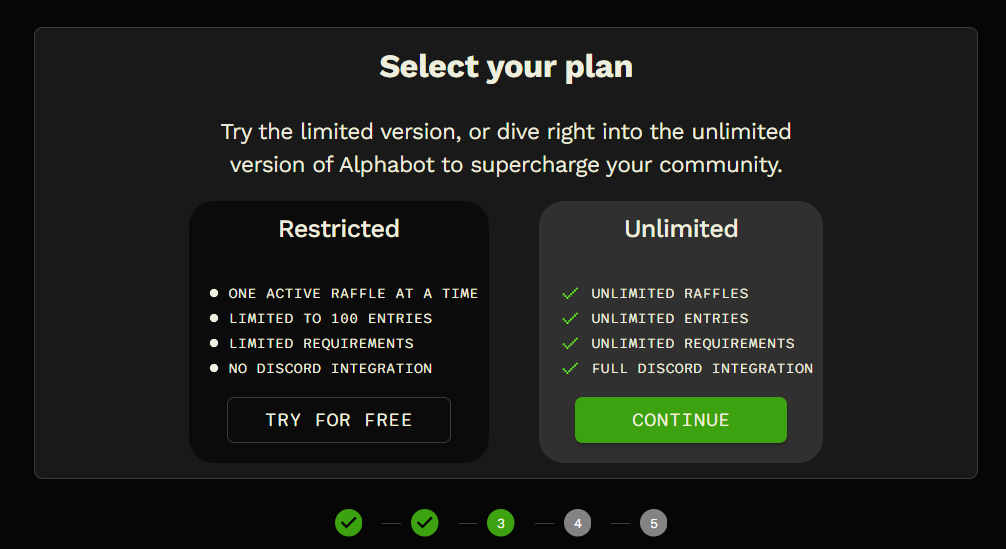
See Free Plan and Subscription for more details.
4. Connect your community
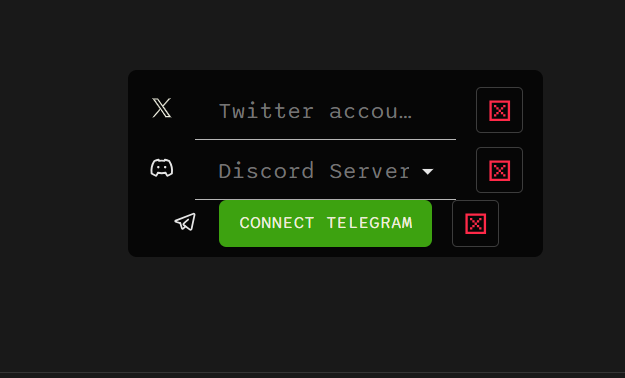
Section titled “4. Connect your community”On the TEAM page, connect your project’s X, Discord, and Telegram accounts. See Team Socials for connection and verification instructions.
5. Review your settings
Section titled “5. Review your settings”
- Loss multiplier: Gives extra entries to users with consecutive losses, increasing their chance of winning. See Loss Multiplier.
- Team member launch reminders: Includes team members in daily Discord mint reminders when enabled. See Team Launch Reminders.
- Require team members to set up 2FA: Requires two-factor authentication in members’ Alphabot profiles for raffle creation or updates, project updates, and manager changes to the team or its membership. Only the owner can change this setting. Enabling it also prevents raffle creation directly within Discord.
You can also choose the Raffle $USDC Receiver and use Export All Team Raffles (CSV) to download basic data from the team’s raffles across all time.
6. Add your team members
Section titled “6. Add your team members”In Members, the owner can click + ADD to add team members or collab managers who will help manage raffles. Open a member’s three-dot menu to promote them to Manager. Managers can manage the subscription and make payments on behalf of the owner.
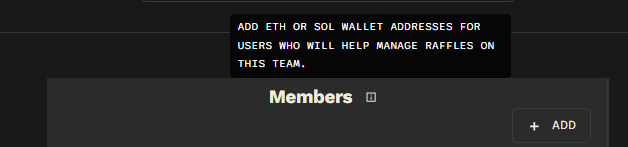
See Team Members for supported identifiers and role permissions.
Manage your raffles and project
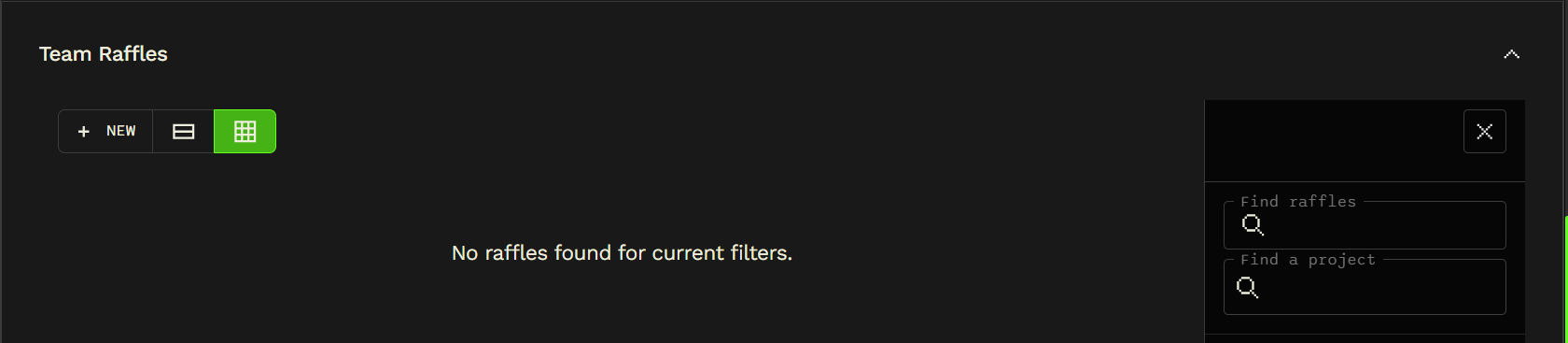
Section titled “Manage your raffles and project”Scroll down on the TEAM page to find Team Raffles. Use the filters, including raffle creator, to find the raffles you need.
View Team Raffles
The tabs beside TEAM give you access to:
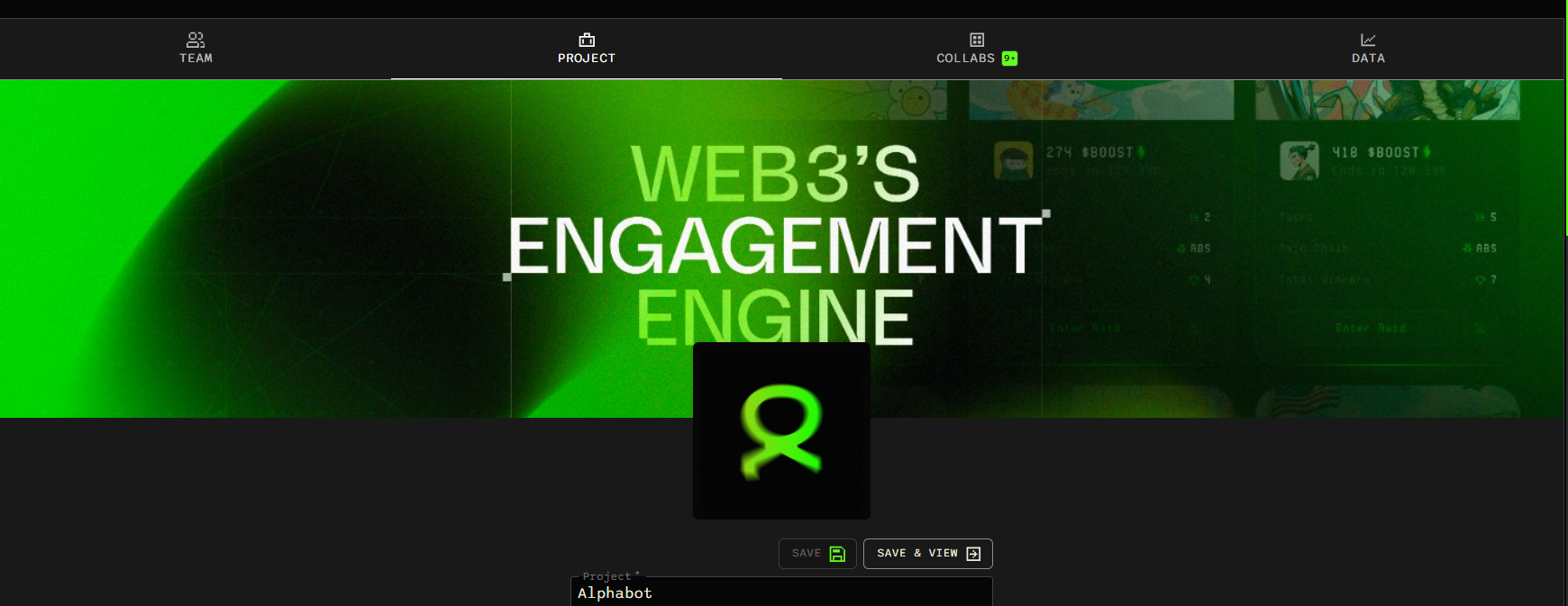
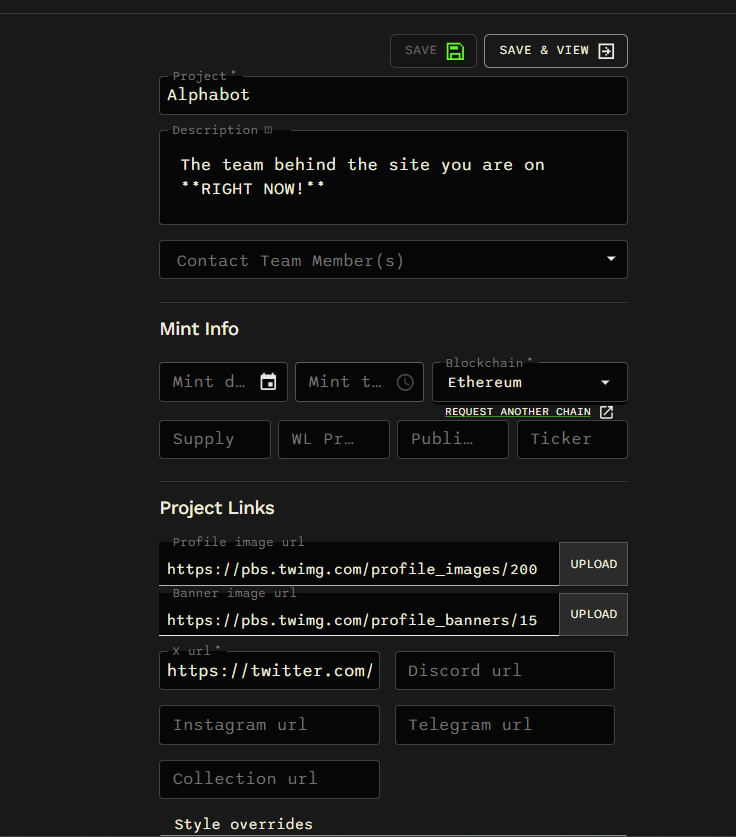
- PROJECT: Connect your project’s X link and edit its information, including its description or template.
- COLLABS: Manage collaborations. See Collab Management.
- DATA: Explore team data, including entries, users, raffles, and more detailed raffle tools. See Team Analytics.
View the tabs and project editor