Creating Your First Raffle
1. Join or create a team
Section titled “1. Join or create a team”You must be part of a team to create a raffle. If you’re a collab manager, ask the team owner to add you in the team’s Members section. See Setting Up Your Team to get started.
2. Open the raffle creator
Section titled “2. Open the raffle creator”Once you’re part of a team, go to the Raffles page and click + NEW. You can also open the raffle creator directly.
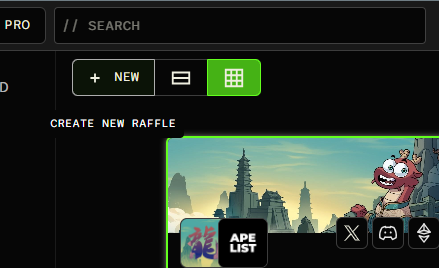
3. Choose your team and starting point
Section titled “3. Choose your team and starting point”
- Team selector: Open the dropdown beside the team icon to choose which team will host the raffle. Check this if you belong to multiple teams.
- Active raffles: Select an active raffle to duplicate its settings and information, saving time when creating a similar raffle.
- Raffle template: Start from a saved template. See Raffle Templates for setup instructions.
4. Choose how to save
Section titled “4. Choose how to save”- Auto-save: When enabled, the raffle is saved when you leave the page’s focus, such as switching to another tab.
- Show all fields: Turn this on to display all available form fields.
- Save Draft: Saves your work as a draft without announcing it or making it available to users. Publish it later with Save & View.
- Save & View: Publishes the raffle. A future start date delays entry. Automatic bot announcements require Auto announce and a configured bot.
5. Add the raffle details
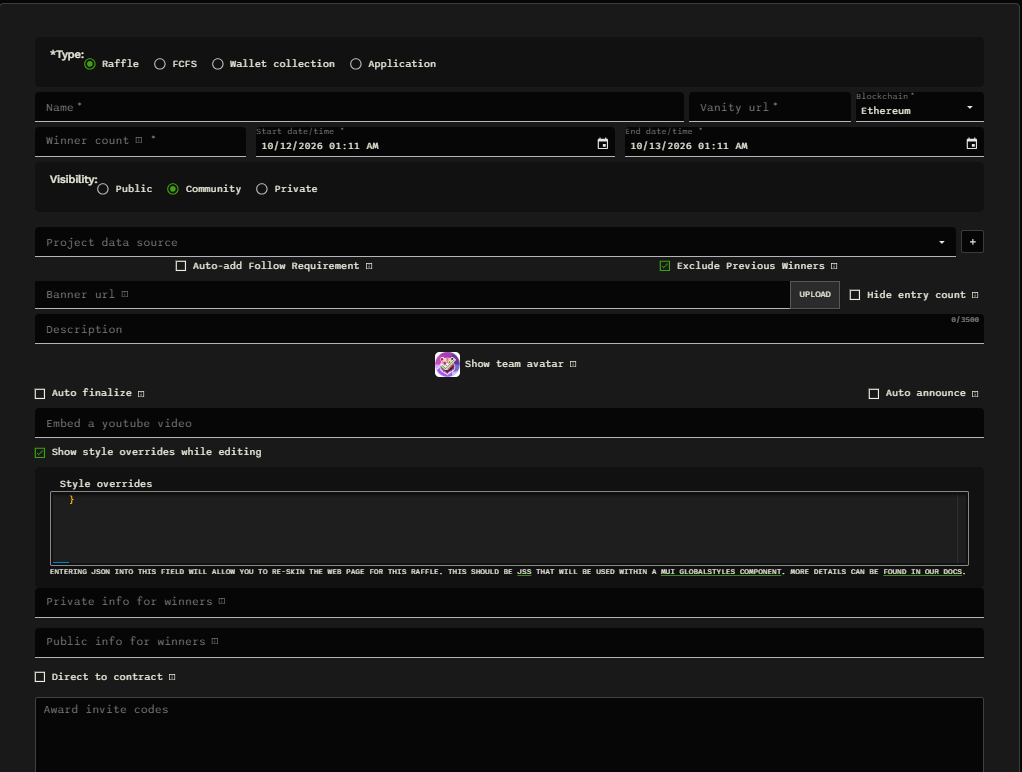
Section titled “5. Add the raffle details”This walkthrough uses Raffle. Choose the type that matches your reward:
| Type | How it works |
|---|---|
| Raffle | Runs until the end date, then winners are randomly selected from the entries page (trophy icon), or automatically with Auto finalize. |
| FCFS | First come, first served: ends when the winner count is reached. |
| Wallet collection | Collects wallets from users who meet your requirements. |
| Application | Your team chooses winners based on their answers. Requires at least one question and can use application codes. |
Enter a Name, such as “Alphabot WL Giveaway.” The Vanity URL is generated from the name; customize it before publishing, because you cannot change it once the raffle is live.
Select the Blockchain for the wallets you need, set the Winner count, and choose the Start and end dates. The start defaults to the current time, but you can schedule it later.
View the raffle details form
6. Set visibility and link the project
Section titled “6. Set visibility and link the project”| Visibility | Who sees it in the raffle list? |
|---|---|
| Public | All users when “All communities” is selected. |
| Community | Members of your connected Discord community. Outsiders can still open the link. |
| Private | Your team members. Other users can still open the link. |
In Project data source, search using the project’s X link. Select your own project for community rewards, or the project offering the whitelist spots. If it isn’t listed, click + to add it to the database. This links the raffle to the project’s mint information for winner reminders.

- Auto-add Follow Requirement: Automatically adds a task to follow the selected project.
- Exclude Previous Winners: Blocks users who already won your team’s raffle for that project from entering again.
7. Describe the prize and choose automation
Section titled “7. Describe the prize and choose automation”Add a Description explaining the project, prize, and claim process. GitHub-flavored Markdown supports bold text, italics, and lists. The Banner URL fills from the linked project’s X banner; replace it or upload your own image if needed. Hide entry count hides participation totals from entrants.
- Auto finalize: Rolls winners at the end time and finalizes the raffle. It becomes uneditable and notifies users of their result. A connected Discord bot can ping winners in the configured channel.
- Auto announce: Enables automatic announcements through your connected bot. Enable this and select an announcement channel to have the raffle posted to Discord.
Optional appearance, winner information, and questions
- Style overrides: Customize the appearance. See Reskinning Raffles.
- Private info for winners: Instructions only winners can see, such as an invite to a closed Discord server.
- Public info for winners: Information everyone can see.
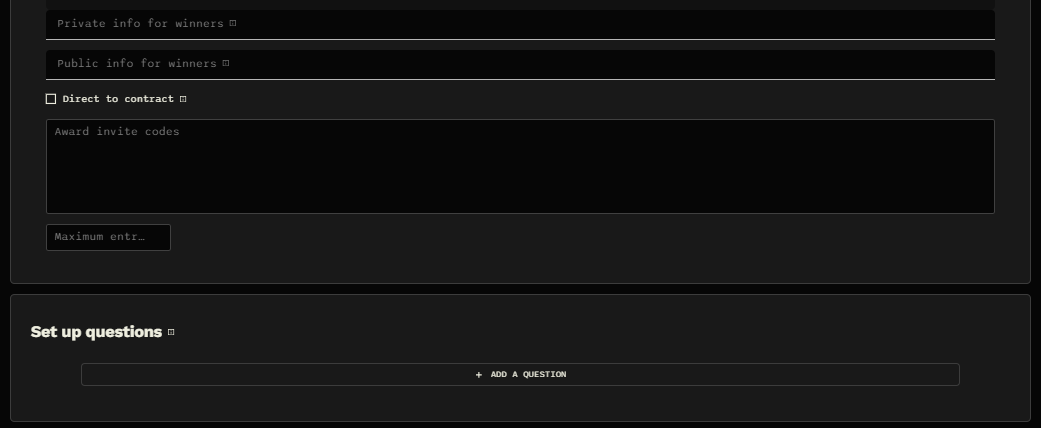
- Direct to contract: Use when winning wallets will be added directly to the project’s contract and winners need no further whitelist claim step.
- Award invite codes: Supply codes for another raffle or application to award to winners, separated by lines or commas.
- Maximum entries: Cap participation—for example, at 1,000 entrants.
- Set up questions: Ask entrants about the project or reward. Applications require at least one question. Questions help qualify entrants but do not replace verification requirements.
8. Choose entry requirements
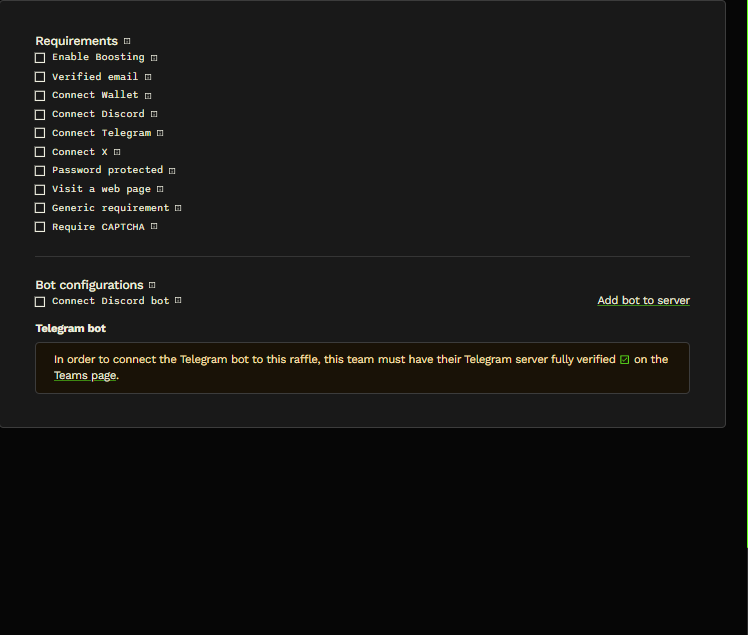
Section titled “8. Choose entry requirements”Enable the requirements for the data you need. For example, to collect email, ETH wallet, Discord, and X details, enable all four corresponding requirements.
| Requirement | What it does |
|---|---|
| Verified email | Requires a verified Alphabot email and submits it to your team on entry. |
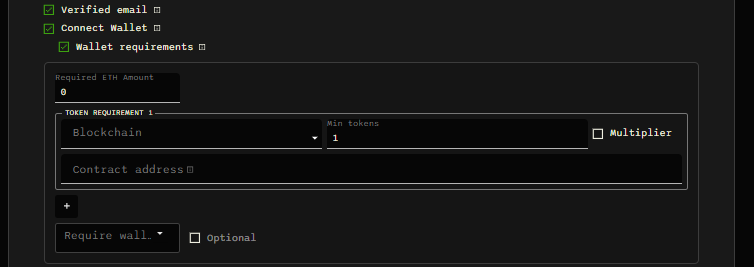
| Connect Wallet | Collects a wallet for the selected blockchain. Leave off for prizes that do not need a wallet. Optional wallet requirements check NFT/token holdings or an ETH balance and require a signature to prove ownership. |
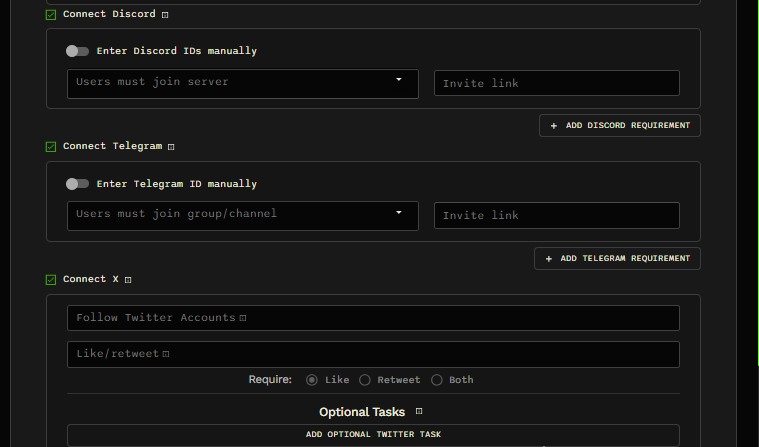
| Connect Discord | Collects Discord details and enables Discord bot winner pings. Optionally require a server or role. |
| Connect Telegram | Collects Telegram details and enables Telegram bot winner pings. Optionally require a group or channel. |
| Connect X | Collects the entrant’s X handle. Optionally require follows, likes, or reposts. Older likes/reposts may take several minutes to verify. |
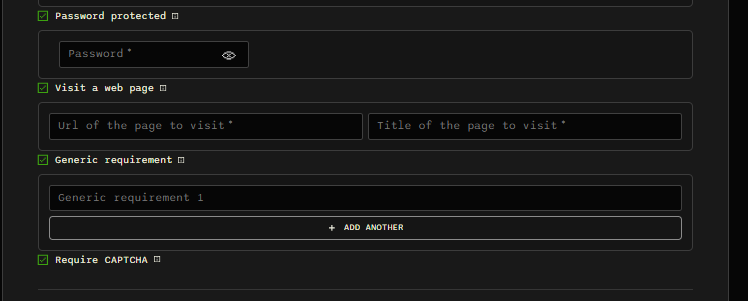
| Password protected | Requires a password—for example, one shared during your AMA. |
| Visit a web page | Requires visiting your chosen URL. |
| Generic requirement | Displays Markdown instructions for tasks Alphabot cannot automatically verify. |
| Require CAPTCHA | Requires completing a CAPTCHA before entry. |
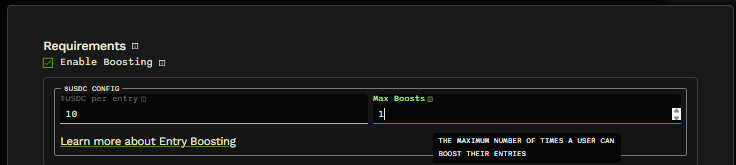
Optional: Enable Boosting
Users can buy extra entries with USDC after entering and completing the other requirements. Set $USDC per entry and Max Boosts, the maximum number of times a user can boost.
For example, at $1 USDC per extra entry, $10 buys 10 extra entries, subject to your limit. Extra entries improve the chance of winning; they do not guarantee a win.
Your team’s Raffle $USDC Receiver setting determines who receives the creator’s share. When set to Raffle Creator, it goes to the creator’s Alphabot wallet, accessible beside their profile.
View detailed requirement settings
9. Configure bots and publish
Section titled “9. Configure bots and publish”Complete Discord Bot Setup or Telegram Bot Setup first, then connect and verify your server or group under Team Socials.
In Bot configurations, select announcement and winner channels and choose who to ping. Discord also offers winner threads, roles, and channels. Enable the corresponding Connect Discord or Connect Telegram entry requirement so the bot can identify winners.
View bot configuration
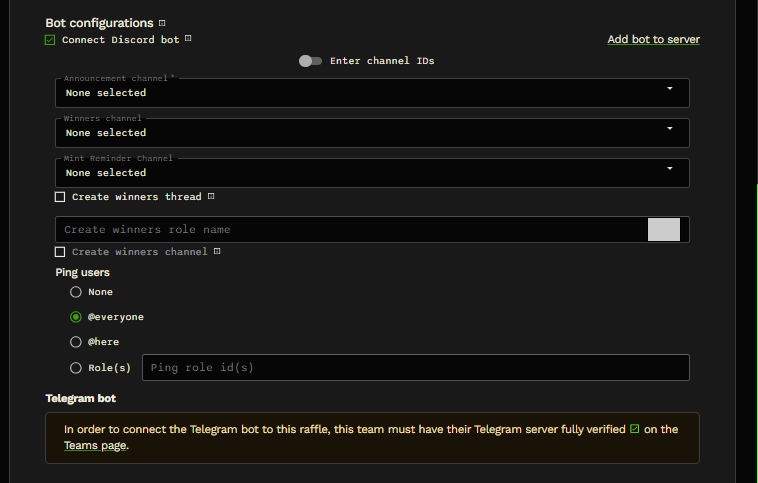
See Post Raffle to Discord or Post Raffle to Telegram for details.
Check your team, prize, project, dates, visibility, requirements, and channels. Use Save Draft to keep preparing or Save & View to publish. Ensure Auto announce is enabled if you want automatic bot announcements.
After entries close, use the trophy icon to roll and finalize winners, unless Auto finalize handles it. Then export winners’ data as needed.
Quick video recap
Section titled “Quick video recap”Review the steps in this 90-second walkthrough with on-screen captions.
Create a raffle through the API
Section titled “Create a raffle through the API”Teams can also create and edit raffles directly through the Alphabot API. See Create and manage raffles with the team API for the supported operations and a link to the API reference.